





Skip to content | Secretary Griswold
Colorado Secretary of State logo - go to home page

Colorado
Secretary of State
Jena Griswold

  • Menu
  • Bingo
  • Business
  • Charities
  • Elections
  • Notary
  • Search
  • Home
  • Administrative rules of state agencies
  • Apostille & authentications
  • Bingo & raffles
    • Bingo & Raffles Forms
    • Bingo & Raffles Log in
    • Bingo & Raffles FAQs
    • Bingo & Raffles Apply for license
    • Bingo & Raffles Renew a license
  • Business organizations
    • Business organizations Search
    • Business organizations File a document
    • Certificate of Good Standing
    • Intelligence Center - Business data
    • Business organizations FAQs
    • Business organizations Email notifications
  • Charities & fundraisers
    • Charities & fundraisers Search
    • Charities & fundraisers Log in to eFile
    • Charities & fundraisers File a form
    • Charities & fundraisers FAQs
    • Charities & fundraisers Reset your password
  • DME suppliers
    • DME suppliers Search
    • DME suppliers Apply
    • DME suppliers Log in
    • DME suppliers FAQs
  • Elections & voting
    • Voters
    • Campaign finance
    • Candidates
    • Clerk's corner
    • Election administrator login
    • Initiatives
    • Military & overseas
    • NVRA agency resources
    • Title board
    • TRACER
    • Voter registration drives
    • Voting systems
  • Español
  • Events & audio broadcasts
  • Fee schedules
  • Lobbyist
    • Lobbyist Search
    • New lobbyist registration / request login
    • Lobbyist Log in to eFile
    • Lobbyist FAQs
  • Newsroom
  • Notary public
    • Verify a notary
    • Renew notary commission
    • Become a notary
    • Notary Log in
    • Notary FAQs
  • Performing rights societies
  • Rules & notices of rulemaking
  • Uniform Commercial Code (UCC)
    • UCC Search
    • UCC eFile
    • UCC FAQs
  • Contact us
  • Holiday calendar
  • Secretary Griswold
  • Home
  • Administrative rules of state agencies
  • Apostille & authentications
  • Bingo & raffles
    • Bingo & Raffles Forms
    • Bingo & Raffles Log in
    • Bingo & Raffles FAQs
    • Bingo & Raffles Apply for license
    • Bingo & Raffles Renew a license
  • Business organizations
    • Business organizations Search
    • Business organizations File a document
    • Certificate of Good Standing
    • Intelligence Center - Business data
    • Business organizations FAQs
    • Business organizations Email notifications
  • Charities & fundraisers
    • Charities & fundraisers Search
    • Charities & fundraisers Log in to eFile
    • Charities & fundraisers File a form
    • Charities & fundraisers FAQs
    • Charities & fundraisers Reset your password
  • Elections & voting
    • Voters
    • Campaign finance
    • Candidates
    • Clerk's corner
    • Election administrator login
    • Initiatives
    • Military & overseas
    • NVRA agency resources
    • Title board
    • TRACER
  • Voter registration drives
  • Voting systems
  • DME suppliers
    • DME suppliers Search
    • DME suppliers Apply
    • DME suppliers Log in
    • DME suppliers FAQs
  • Events & audio broadcasts
  • Fee schedules
  • Lobbyist
    • Lobbyist Search
    • New lobbyist registration / request login
    • Lobbyist Log in to eFile
    • Lobbyist FAQs
  • Newsroom
  • Notary public
    • Verify a notary
    • Renew notary commission
    • Become a notary
    • Notary Log in
    • Notary FAQs
  • Performing rights societies
  • Rules & notices of rulemaking
  • Uniform Commercial Code (UCC)
    • UCC Search
    • UCC eFile
    • UCC FAQs
  • Contact us
  • Holiday calendar
  • Secretary Griswold

Registration Instructions

Existing professional lobbyist

Log in and file registration

  1. From the Lobbyist home page, under File Reports, click on “log in to eFile”.
  2. Enter your user name and password.
  3. Under Lobbyist Filing Center, click on “Annual Registration”.
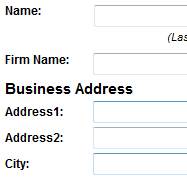
  4. Complete the Annual Registration form by entering your information and selecting your Initial Reporting Month.  What is my Initial Reporting Month?
  5. Click on “Continue to Clients”.
  6. Click “Add” to add new client information, if necessary.
  7. To edit any existing client(s) listed, click on the name of the client and edit the information as needed.
  8. Once you have added all of the clients, click on “Continue”.

Payment & confirmation

  1. On the Online Payment page, complete payment and then click on “Submit”.
  2. Print the Transaction Confirmation page for your records.

Your registration is complete.

Click on “Continue” to go to your summary page.

Colorado Secretary of State | 1700 Broadway, Suite 550, Denver CO 80290 | 303-894-2200

Terms & conditions | Accessibility statement | Browser compatibility
